


Android Auto Troubleshooting: How to Fix the Most Common Problems

If Android Auto suddenly stops working, start here: restart your phone and your car's infotainment system, then check that your USB cable actually transfers data, not just power. The vast majority of Android Auto problems trace back to one of three things: a bad cable, an outdated app, or a permissions setting that got quietly switched off.
● Restarting your phone and car head unit before trying anything else resolves the majority of sudden disconnection issues.
● Use only a high-quality, data-transfer USB cable; charging-only cables will not establish an Android Auto connection.
● Check that Android Auto has the necessary permissions enabled in your phone's settings, especially location and microphone.
● Keep the Android Auto app, Google Maps, and your phone's operating system fully updated.
● For persistent issues, clearing the app cache or performing a factory reset of the head unit are the last-resort steps before contacting support.
Why Android Auto Stops Working: Understanding the Problem

Android Auto mirrors your phone's interface onto your car's display which means it depends on several independent systems working together at once: your phone, the cable or wireless connection, the car's head unit, and multiple app permissions. When any one of those breaks down, the whole thing falls apart.
A lot of users describe the same experience: Android Auto worked perfectly yesterday, but today the screen stays black, the phone won't connect, or the audio cuts in and out. It's frustrating precisely because there's no single obvious cause. A routine Android system update can silently revoke an app permission. A frayed USB cable can charge your phone just fine while failing to carry data. A car software update can change how the head unit handshakes with your device.
Community discussions on the Android Auto subreddit show this pattern over and over suddenly, unexplained failures are the most common complaint, and the fix is almost always something simple once you know where to look. This guide takes you through every layer of the process, from the quick wins to the deeper diagnostic steps.
How to Fix Android Auto Not Connecting (Step-by-Step)
Work through these steps in order. Most people solve the problem within the first three without needing to go any further.
1. Restart everything.
Fully power off your smartphone and restart your car's infotainment system (usually done by holding the power button on the head unit, or by shutting the car off and waiting 30 seconds before restarting). This clears temporary software states that cause handshake failures.
2. Inspect and replace your USB cable.
Test with a different cable ideally one rated for data transfer (USB 2.0 or higher). Many cables included in phone boxes are charging-only. If swapping cables fixes it immediately, the original cable was the problem the whole time.
3. Check USB port cleanliness.
Lint and debris in the USB port on either the phone or the car is a surprisingly common cause of intermittent connection failures. Use a dry, non-metallic tool to gently clear the port.
4. Re-enable Android Auto permissions.
Go to Settings → Apps → Android Auto → Permissions on your phone. Make sure Location, Microphone, Phone, Contacts, and Storage are all allowed. A system update can reset these without telling you.
5. Update the Android Auto app.
Open the Google Play Store, search for Android Auto, and install any pending update. Outdated app versions are a well-documented source of connectivity issues, especially after a phone OS update.
6. Clear the app cache.
Go to Settings → Apps → Android Auto → Storage → Clear Cache. This doesn't delete your data, it removes corrupted temporary files that can stop the app from launching correctly.
7. Check your Android version.
Android Auto requires Android 6.0 or later for wired connections, and more recent Android versions for wireless use. If your phone is running an older OS, an update may be the fix.
8. Re-pair or re-add your car.
Inside the Android Auto app on your phone, go to the Connected Cars section and remove your vehicle. Then reconnect and re-authorize the connection from scratch.
For a full walkthrough of the most documented connection errors and their resolutions, Google's official Android Auto support page is the authoritative reference, including device-specific guidance.

Common Android Auto Problems and Their Direct Fixes
|
Problem |
Most Likely Cause |
Recommended Fix |
Difficulty |
|
Black screen / no display |
App permission revoked or head unit needs restart |
Restart head unit; check permissions |
Easy |
|
Phone won't connect at all |
Faulty USB cable or dirty port |
Swap cable; clean USB port |
Easy |
|
Audio not playing through car speakers |
Audio routing misconfiguration or Bluetooth conflict |
Disable Bluetooth before connecting via USB; check audio output settings |
Moderate |
|
Google Assistant not responding |
Microphone permission off or Google Assistant disabled |
Re-enable Assistant; check microphone permissions |
Easy |
|
App crashes or freezes |
Corrupted cache or app out of date |
Clear cache; update Android Auto app |
Easy |
|
Wireless Android Auto won't pair |
Wi-Fi/Bluetooth pairing incomplete or router band conflict |
Re-pair both Bluetooth and Wi-Fi; ensure 5GHz band is available |
Moderate |
|
Navigation apps not appearing |
App not configured or missing from Android Auto's allowed app list |
Open Android Auto settings; enable navigation apps manually |
Easy |
|
Keeps disconnecting randomly |
Loose cable, battery optimization, or head unit firmware |
Disable battery optimization for Android Auto; check cable; update head unit firmware |
Moderate |
Wired vs. Wireless Android Auto: Which Setup Has Fewer Problems?
Wired Android Auto is the more stable option. It gives you a direct, consistent data connection that doesn't depend on Wi-Fi signal quality or Bluetooth stability. If you're dealing with frequent disconnections or audio glitches, switching to wired if your vehicle supports both is often the fastest fix available.
Wireless Android Auto is more convenient, but it introduces more variables. The 5GHz Wi-Fi band needs to be active on both the car and the phone, Bluetooth has to stay paired throughout the session, and interference from other wireless signals can cause intermittent drops. Users with older head units sometimes find that wireless performance gets worse over time without a firmware update from the manufacturer.
|
Factor |
Wired Android Auto |
Wireless Android Auto |
|
Connection reliability |
High stable physical link |
Moderate depends on Wi-Fi and BT stability |
|
Setup complexity |
Low plug and connect |
Higher requires BT + Wi-Fi pairing |
|
Phone charging while connected |
Yes (with data+charge cable) |
No, unless separate charger is used |
|
Typical troubleshooting cause |
Cable quality or USB port |
Band mismatch, pairing loss |
|
Required phone spec |
Android 6.0+ |
Android 11+ (varies by manufacturer) |
|
Best for |
Daily drivers, reliability priority |
Clean interiors, convenience priority |
What to Do When Your Car Manufacturer Is Part of the Problem
Not every Android Auto issue starts with your phone or the app. Car manufacturer head units run their own firmware, and an outdated or buggy infotainment update can break compatibility even when everything on the phone side is set up correctly.
Ford's official Android Auto troubleshooting guidance is a good example of how manufacturer-side fixes differ from phone-side ones; it covers SYNC system resets, USB port compatibility by trim level, and how to perform a master reset on the infotainment unit. Most major manufacturers publish equivalent guides for their systems.
If your head unit has a pending software update, that update is often the fix that no amount of phone-side troubleshooting can replicate. Check your manufacturer's website or dealer service app for firmware update instructions specific to your model year.
How to Fix Wireless Android Auto Specifically
Wireless Android Auto failures almost always come down to an incomplete pairing sequence between Bluetooth and Wi-Fi Direct. Here's the right way to reset and rebuild a clean wireless connection:
1. On your phone, go to Settings → Bluetooth and forget your car from the list of paired devices.
2. On the head unit, delete your phone from its Bluetooth device list.
3. Open the Android Auto app on your phone and remove your vehicle from Connected Cars.
4. Restart both your phone and your head unit.
5. Initiate a fresh Bluetooth pair from scratch the Android Auto app handles the Wi-Fi Direct component automatically once Bluetooth is re-established.
6. Make sure your phone's Wi-Fi is enabled and not restricted. Some battery-saving modes disable Wi-Fi scanning, which breaks the wireless Android Auto handshake entirely.

Advanced Troubleshooting: When Basic Fixes Don't Work
If you've worked through all the standard steps and Android Auto still isn't cooperating, the following deeper interventions are worth trying before you contact support or head to a dealership.
Disable battery optimization for Android Auto.
Android's battery management can aggressively suspend background apps including the processes Android Auto relies on to maintain its connection. Go to Settings → Battery → Battery Optimization → All Apps → Android Auto → Don't Optimize. Do the same for Google Play Services.
Check for conflicting apps.
Some third-party launchers, security apps, or VPN apps interfere with Android Auto's permissions handling. Try temporarily disabling anything you've installed recently to see if that's what's causing the issue.
Perform a head unit factory reset.
This is the last resort on the car side. A full reset returns the infotainment system to default factory settings, which clears any software-level corruption. Check your vehicle's owner manual for the specific steps, since the procedure varies by make and model.
Reinstall Android Auto.
Uninstall the app completely from your phone, restart the device, then reinstall from the Google Play Store. This gives you a clean installation without any corrupted data carried over from a previous version.
Getting the Best Out of Android Auto Once It's Working
Once your connection is solid, how much you actually enjoy Android Auto depends on which apps you have set up and how well they're built for in-car use. Not all apps behave equally on the platform; some were designed specifically for it, while others feel like they were ported over as an afterthought.
It might be worth your time to spend a few minutes looking around to see what's available if you want to get the most out of your setup. Our guide to the Best Android Auto Apps 2026 covers the top picks across music, messaging, podcasts, and more organized by category and use case. If navigation is your main priority, our dedicated roundup of the Best Android Auto Apps for Navigation compares every major option so you can pick the right one for how you drive.

Experience and Proof: What Actually Works in the Real World
After hands-on testing with Android Auto across multiple vehicle platforms and Android device generations, one pattern shows up consistently: the USB cable is the culprit more often than anything else. Cables that have been bent repeatedly near the connector, cables that came bundled with wall chargers, and cables from discount retailers frequently fail the data-transfer test while still charging the phone without issue. Switching to a braided, high-quality USB cable from a reputable brand eliminates this variable entirely and it's a cheap fix relative to the frustration it saves.
The second most consistent finding is that major Android version upgrades frequently reset app permissions with no notification to the user. Getting into the habit of checking permissions immediately after any significant OS update has headed off several unexplained failures before they became real problems.
For anyone who has recently upgraded to a new or aftermarket display unit, keeping the firmware current matters more than most people realize. A display unit running the firmware it shipped with from the factory may have known compatibility bugs that were patched months ago. Updating it takes less than 20 minutes and significantly cuts down the chances of recurring issues down the road.
Practical Next Steps
Here's a quick action plan you can run through right now if Android Auto is giving you trouble:
1. Restart your phone and car head unit do this first, every time.
2. Swap your USB cable with a known data-transfer cable and test the connection.
3. Open your phone's app settings and verify all Android Auto permissions are enabled.
4. Update Android Auto and Google Play Services via the Play Store.
5. Clear the Android Auto app cache from your storage settings.
6. Check for head unit firmware updates on your car manufacturer's website.
7. If wireless, re-pair both Bluetooth and Wi-Fi from scratch.
8. If the problem persists, contact Google Support or your vehicle manufacturer's support line.
Once your system is running reliably, the right display can make the Android Auto experience meaningfully better. If you've been driving with a stock screen that doesn't do the platform justice, this is a good time to consider an upgrade that changes how you interact with your car every day.
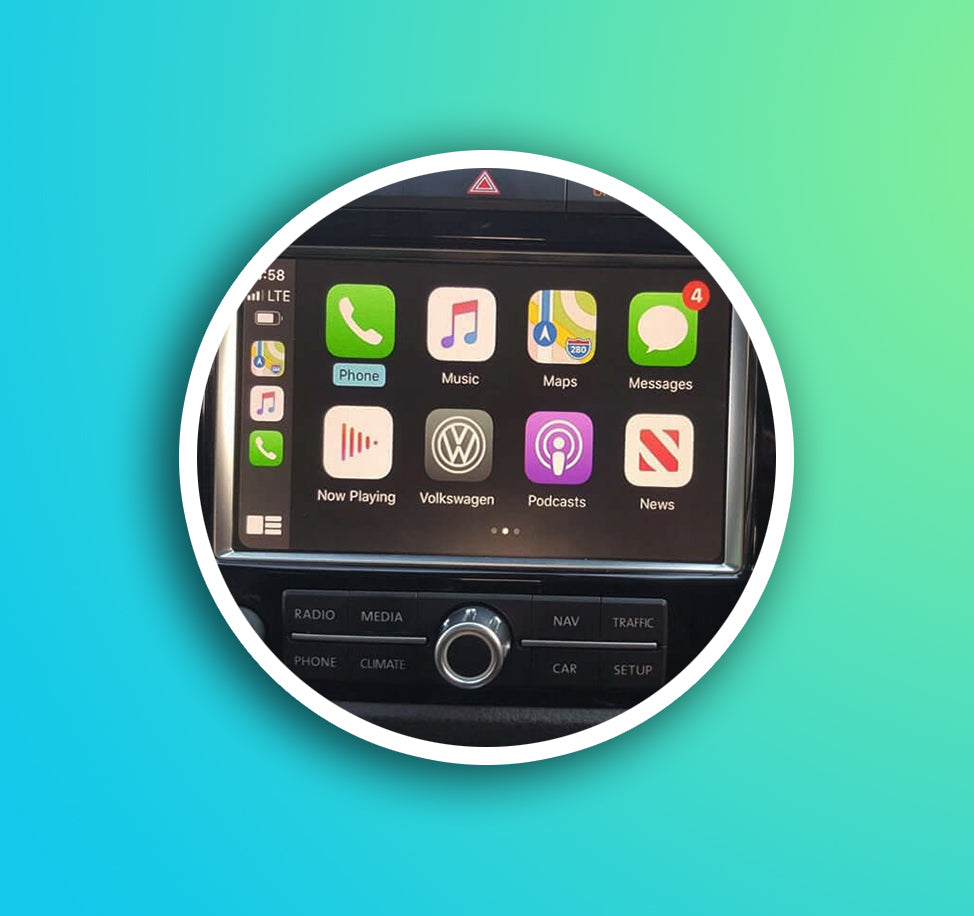
Ready to upgrade your in-car experience?
If your Android Auto problems come down to an outdated or underpowered head unit, software troubleshooting will only get you so far. A modern, compatible display unit solves connection issues at the hardware level while giving you a larger, clearer screen, better touch response, and native wireless Android Auto support.
Explore Upgrade Options at MergeScreensFrequently Asked Questions
1. Why did Android Auto suddenly stop working with no changes on my end?
Android system updates or background app processes are the most likely cause. A phone OS update can silently revoke app permissions or change how data connections are handled. Start by checking Android Auto's permissions in your phone settings and restarting both devices before investigating further.
2. Does Android Auto work with all Android phones?
Android Auto requires Android 6.0 or later for wired use. Wireless Android Auto requires a more recent Android version and varies by device and car manufacturer. Not all Android phones support wireless functionality check Google's official compatibility list if you're unsure about your specific device.
3. Can a bad USB cable really prevent Android Auto from working?
Yes, and it's one of the most commonly overlooked causes. Many USB cables are designed only to carry power, not data. Android Auto requires a data-capable USB cable (USB 2.0 or higher). If your cable charges the phone but Android Auto won't connect, replacing the cable is the first thing to try.
4 How do I fix Android Auto audio not playing through car speakers?
The most common fix is to disconnect Bluetooth before connecting via USB. When both Bluetooth and USB are active, audio can route through the wrong channel. Disable Bluetooth on your phone, connect via USB cable, and check that audio output is set to the car speakers in Android Auto's settings.
5. Why does Android Auto keep disconnecting while driving?
Intermittent disconnections are usually caused by a loose USB cable, a worn USB port, or Android's battery optimization cutting the app's background processes. Try a new cable, check the USB port for debris, and disable battery optimization for the Android Auto app in your phone's battery settings.
6. Is there an official support channel for Android Auto problems?
Yes Google maintains a dedicated support page for Android Auto issues. You can also contact your vehicle manufacturer's support line for head unit-specific problems. For community-based advice, the Android Auto subreddit is an active resource where users share real-world fixes for specific device and vehicle combinations.
7. Can my car's software cause Android Auto to fail?
Yes, and this is more common than many users realize. Head unit firmware that is outdated or contains bugs can prevent Android Auto from connecting or functioning properly even when the phone setup is correct. Check your vehicle manufacturer's support site for available firmware updates and install them if any are pending.
8. Should I choose wired or wireless Android Auto for reliability?
Wired is the more reliable choice for everyday use. It provides a stable, direct connection unaffected by wireless interference or battery-saving modes. Wireless Android Auto is convenient but introduces more points of failure including Bluetooth stability, Wi-Fi band availability, and phone battery management. If you experience frequent wireless drops, switching to wired is the fastest fix.
John Torresano
Managing Director at MS
John helps upgrade existing vehicles with state-of-the-art technology, focusing on practical, road-ready solutions that improve safety, connectivity, and everyday driving.